
Quick start
Go from sign-up to your first AI video in about 10 minutes. These five steps match the Quick start guide inside the dashboard. Prefer watching? See the documentation overview video.
Create your account
Sign up with Google or email. Your account includes free credits, so you can create your first video without adding a payment method.
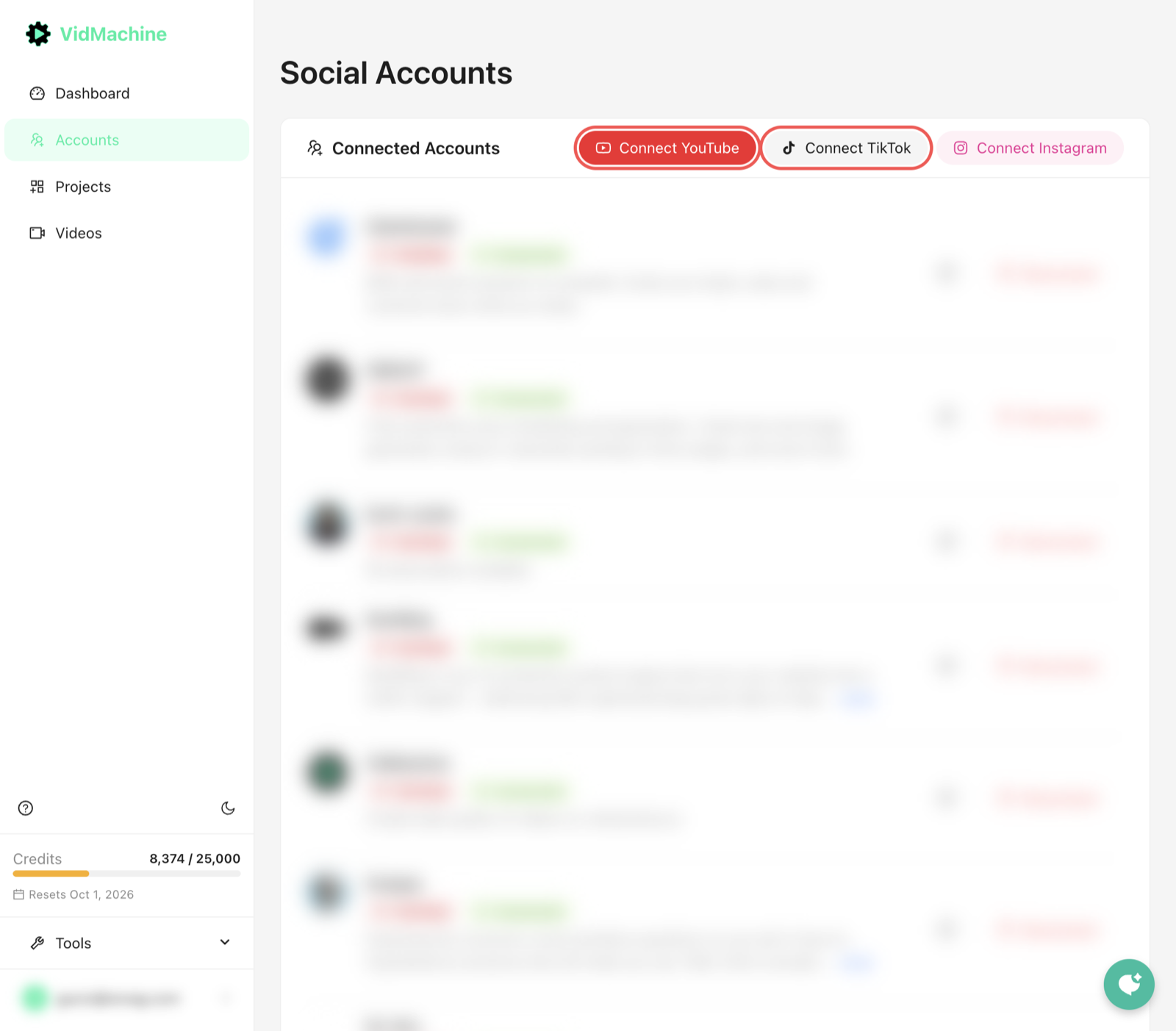
Connect a channel
Open Accounts in the sidebar and connect YouTube and/or TikTok. You can skip this for now, but you need a connected account before VidMachine can publish for you.
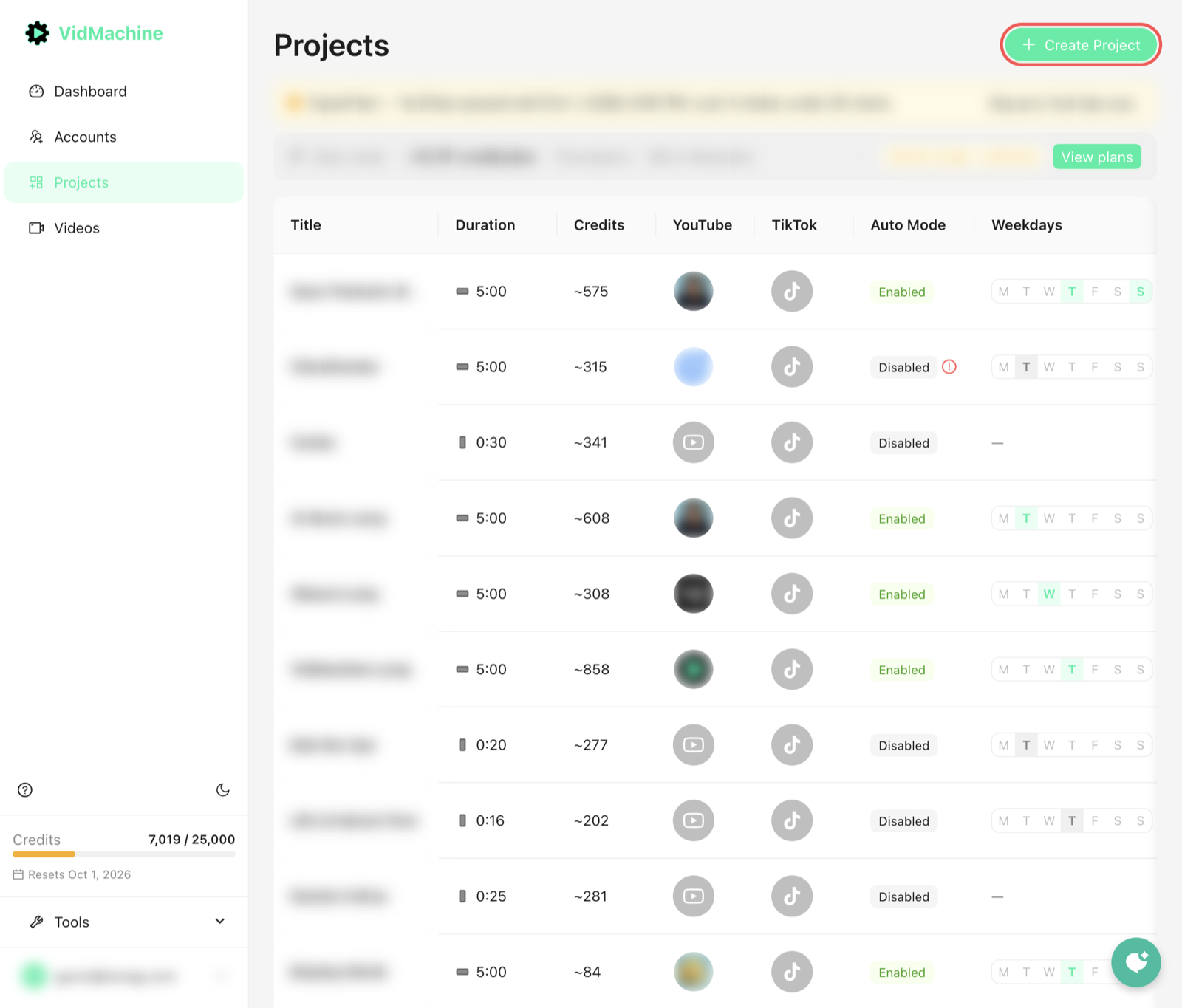
Create a project
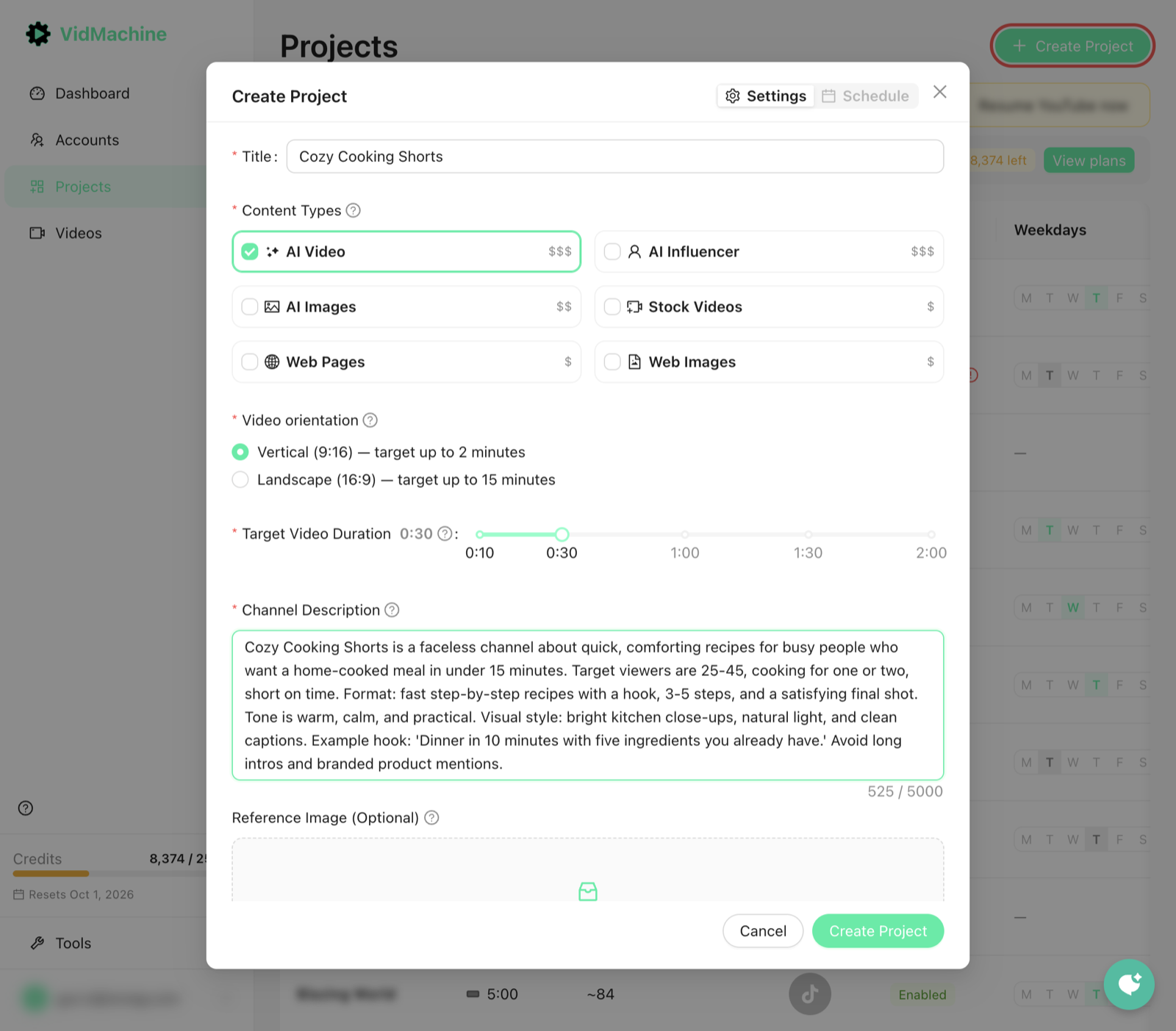
Open Projects and click Create Project. Use one project per channel or niche — its settings apply to every video in it.
Give the project a Title and a Channel Description (100–5,000 characters). The description is the main creative brief — the AI uses it for ideas, screenplays, and visuals. You can leave the other sections on their defaults and edit them later.
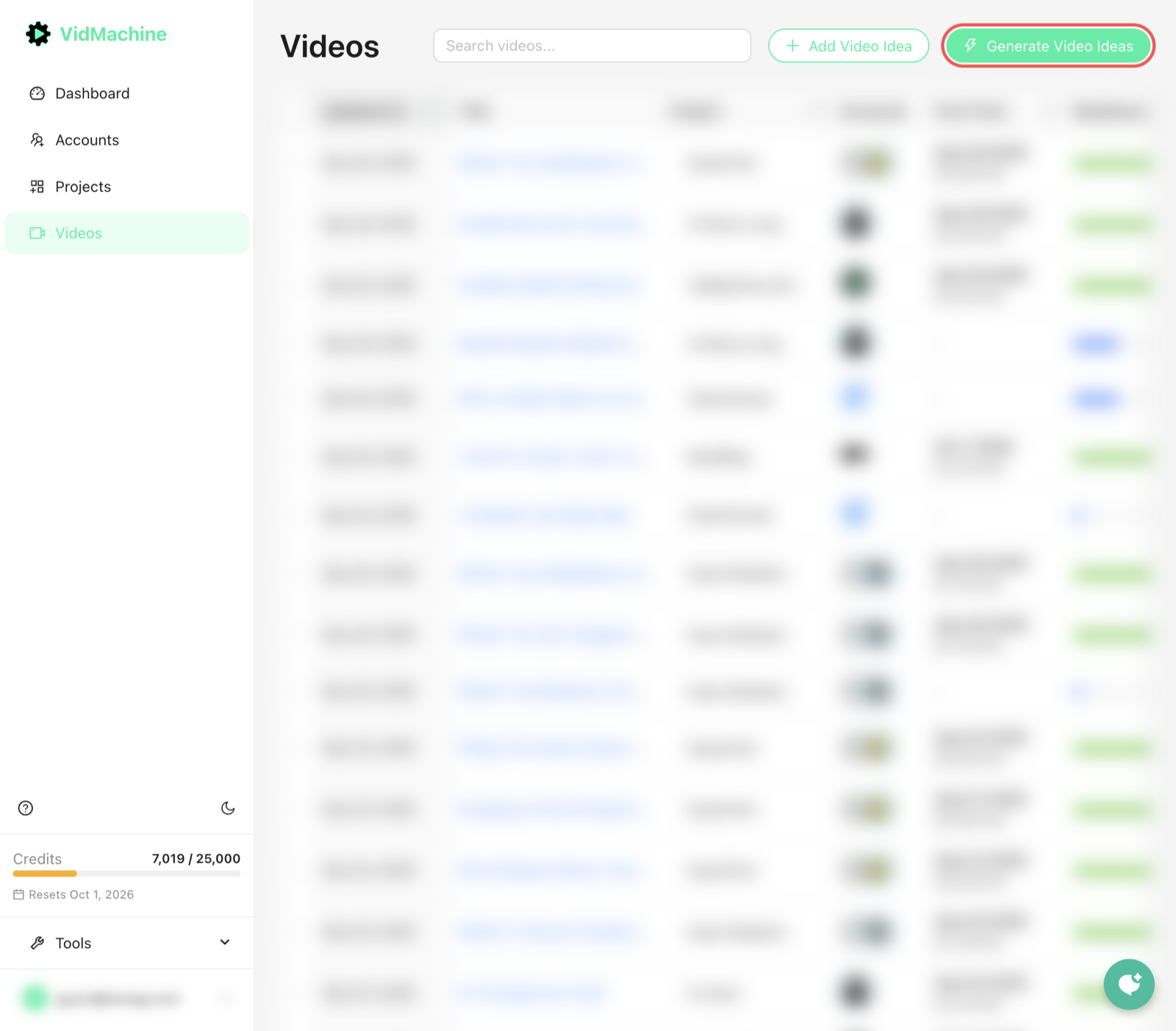
Generate video ideas
Open Videos and click Generate Video Ideas, then pick your project. VidMachine writes a batch of titles (10 by default) from your channel description — 1 credit per batch. Keep the ideas you like.
Generate your first video
Open an idea from the list and click Generate Video. VidMachine runs the full pipeline: screenplay, scenes, media, optional narrator and captions, and the final export. You can leave the page — the video status stays visible on Videos.
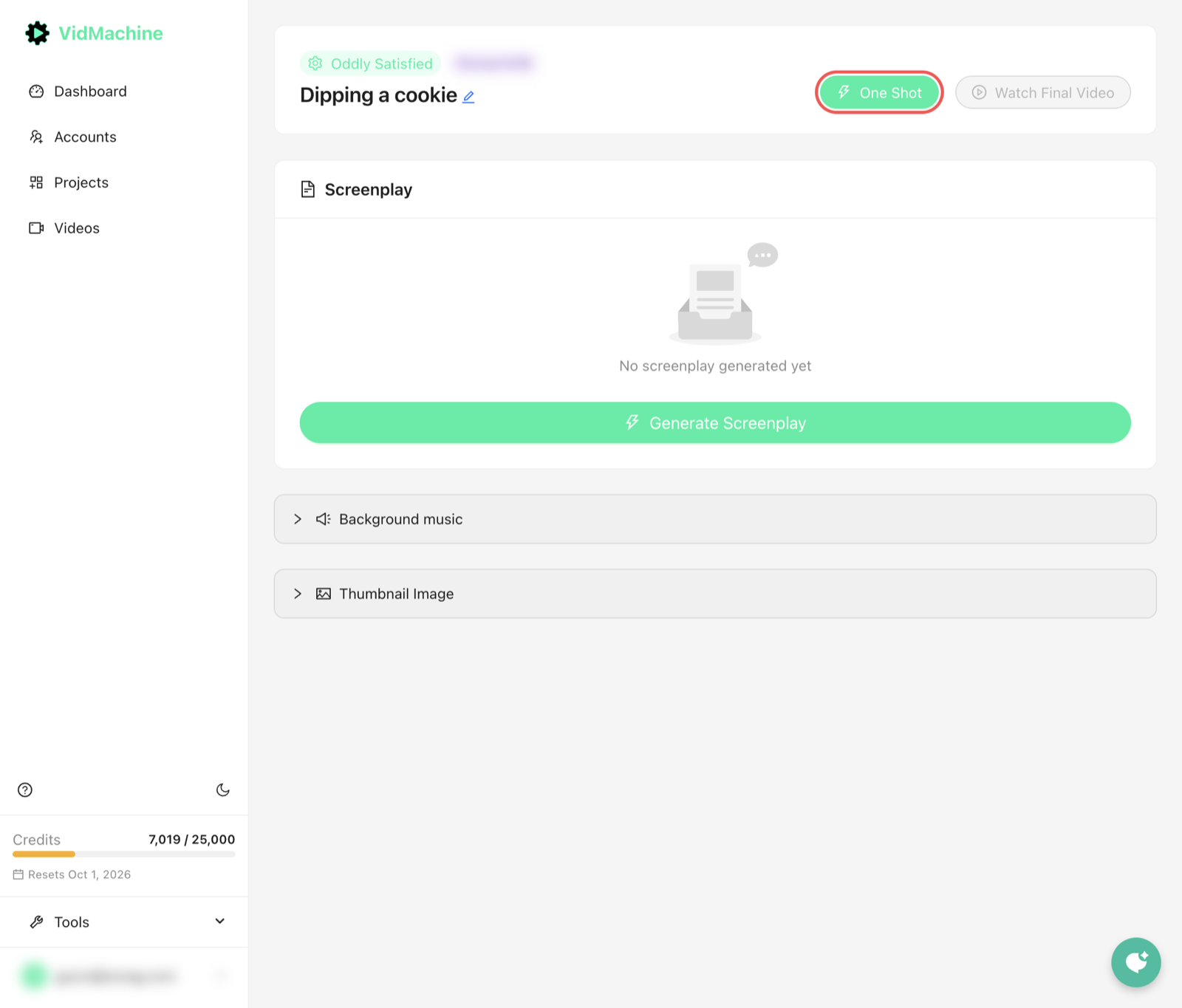
After your first video
When the video is ready, set it to Upcoming with a post time or publish it right away. Connect accounts under Accounts if you skipped that step. To make videos automatically, open Projects, click Schedule on your project, and enable Auto Generate Videos — see Automatic video generation.
If something goes wrong
Generate Video Ideas is disabled or asks for a project — create a project first, then select it in the dialog.
Channel Description is rejected — it must be at least 100 characters. Describe your topic, audience, format, and tone.
Nothing publishes — connect YouTube or TikTok under Accounts, then schedule the video or publish it manually.
Generation fails or looks stuck — open the video to see its status and error. You can retry, or add fallback models in the project settings.
Out of credits — see Credits & billing for what uses credits and how to top up.
Channel Description is rejected — it must be at least 100 characters. Describe your topic, audience, format, and tone.
Nothing publishes — connect YouTube or TikTok under Accounts, then schedule the video or publish it manually.
Generation fails or looks stuck — open the video to see its status and error. You can retry, or add fallback models in the project settings.
Out of credits — see Credits & billing for what uses credits and how to top up.
What to read next
How to create videos — every project setting and the manual workflow. · Automatic video generation — accounts, schedules, and Auto Mode. · Credits & billing · API reference