VidMachine

VidMachine

Set up automatic video generation

This guide walks you through turning on fully automatic video creation and publishing for YouTube Shorts and TikTok. You will connect your social accounts, create a project with the right settings, and configure a schedule so VidMachine generates and posts videos without manual steps. Learn how to automate Shorts, run a faceless YouTube channel on autopilot, and grow a TikTok account with scheduled AI videos.

What is automatic video generation?

When automatic video generation (auto-generate) is enabled for a project, VidMachine creates video ideas and full videos ahead of time and publishes them to your chosen YouTube and TikTok accounts on the days and times you set. This is ideal for faceless YouTube Shorts channels, TikTok automation, and maintaining a consistent content calendar with minimal effort. You get hands-free video marketing, bulk video creation, and a set-and-forget pipeline for AI-generated Shorts and TikTok clips.

Overview of the setup

You will: (1) connect your YouTube and TikTok accounts in the dashboard, (2) create a project and configure every setting that affects your videos, and (3) set the schedule and assign which accounts to use. Each step is explained below with an emphasis on why each option matters for automation and SEO-friendly content.

Step 1: Connect your YouTube and TikTok accounts

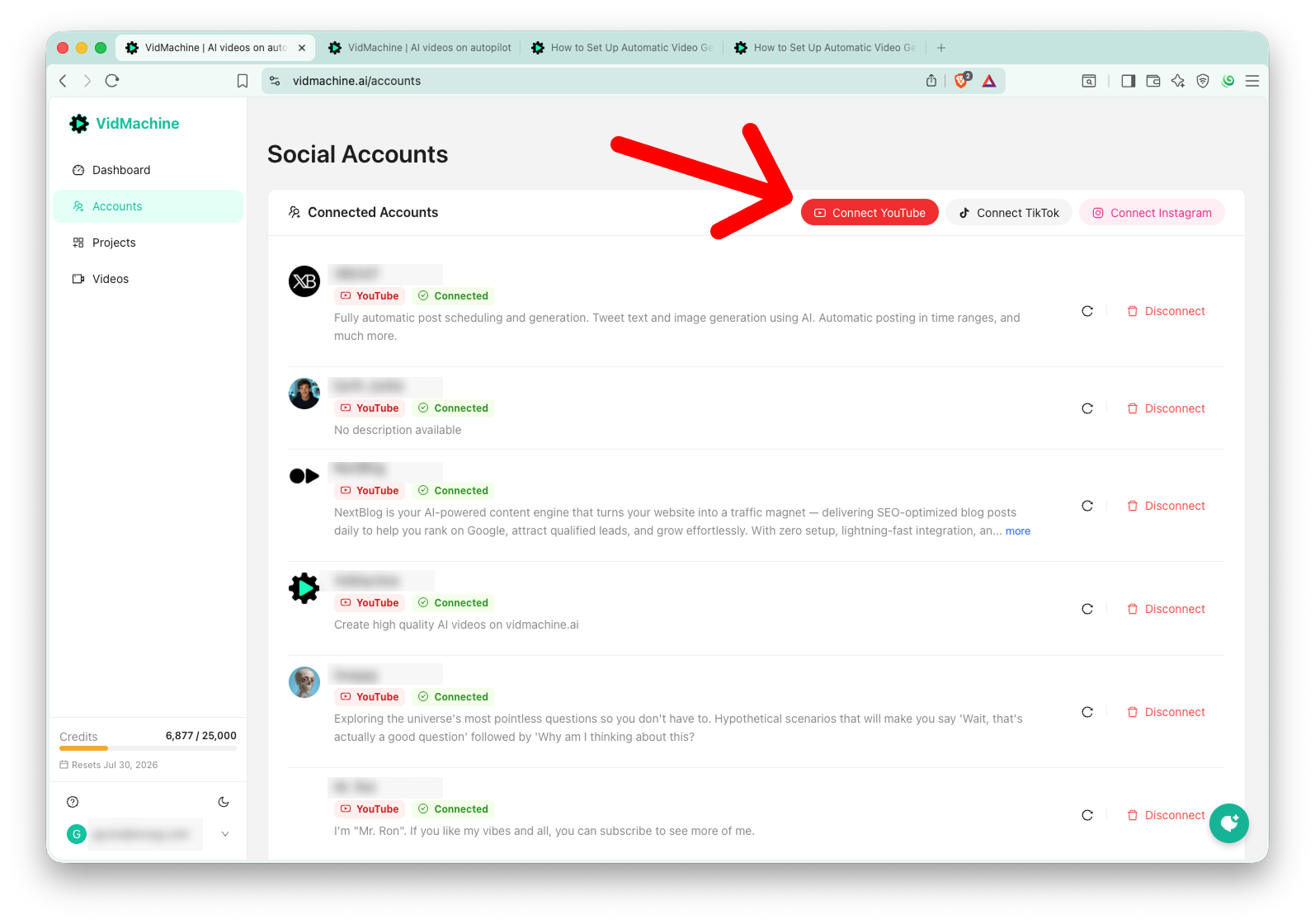
Before automatic posting can work, VidMachine needs permission to upload to your channels. Go to the Accounts page in the dashboard (sidebar). There you can connect one or more YouTube channels and TikTok accounts via secure OAuth. Each connection authorizes VidMachine to publish videos on your behalf. You can connect multiple accounts and later choose which YouTube channel and which TikTok account to use per project. Connecting accounts is required for auto-publish; without it, videos are only generated and queued for manual publishing.
Why it matters for automation: The schedule settings (Step 3) let you assign a specific YouTube account and TikTok account to each project. If you have several channels—for example, different niches or languages—you can create one project per channel and point each to the right account. This keeps your automatic video pipeline organized and multi-channel friendly.

Step 2: Create a project and configure every setting

Go to Projects and create a new project (or edit an existing one). The project holds all creative and technical settings that drive your AI video content. Getting these right is the most important part of automatic video generation, because the same settings apply to every auto-generated video in that project.

Title

Give the project a clear name (e.g. your channel name or niche). The title is for your reference in the dashboard and in the Videos list. It does not directly control the AI, but a descriptive title helps you manage multiple projects when you scale to several automatic video pipelines.

Description (most important setting)

The project description is the main input that steers all generated videos. It must be at least 100 characters and can be up to 5,000. Use it to define your topic, channel or brand, desired video structure, visual style, tone, and even example ideas or titles. The AI uses this context to generate relevant video ideas and screenplays, so a detailed description leads to more consistent, on-brand automatic videos. Think of it as your creative brief for the entire project.

Character image (optional)

You can upload a character or reference image that will be used to keep a consistent look across videos. Only add one if your concept relies on a recurring character or visual. For general faceless Shorts or TikTok clips that don’t need a fixed character, leave this empty. The image is optional and can be added or replaced later in project settings.

Video type: AI Video vs AI Images

AI Video produces full AI-generated video clips (e.g. Veo, Sora, Grok). Each scene is generated as video. This is the default for most Shorts and TikTok automation. AI Images creates videos by stitching together AI-generated images and adding a narrator voice-over; the narrator is required for AI Images. Choose AI Video for dynamic, motion-heavy content; choose AI Images when you want a slideshow-style video with a consistent voice. Your choice affects which models and options appear (e.g. video model priority only for AI Video).

Use narrator voice

When enabled, VidMachine adds a spoken narrator on top of the video using ElevenLabs text-to-speech. For AI Images this is always on. For AI Video it is optional: with narrator off, only the sounds from the generated video are used. Enabling narrator is useful for explainer-style or scripted Shorts and TikTok videos where a clear voice drives the message. You can pick a specific ElevenLabs voice in the project settings; preview voices in the dropdown before saving.

Target video duration

Set the target length of each video in seconds (between 10 and 50). This drives how long the screenplay and generated clips are. Shorter durations (e.g. 15–20 seconds) suit fast-paced Shorts and TikTok; longer ones (e.g. 30–45 seconds) suit mini-docs or storytelling. The value is used for every auto-generated video in the project, so set it once to match your channel format.

Image models (priority order)

You select one or more image generation models in priority order. The system uses the first model for each image; if it fails, it tries the next. Having 2–3 models as backup improves reliability for automatic video generation, especially when running unattended. Image models are used for AI Video (e.g. starting frames or scene images) and for AI Images (full scene images). Choose models that match your visual style and credit budget.

Video models (priority order) — AI Video only

For projects with type AI Video, you set 1–3 video models in priority order (e.g. Veo 3.1, Sora 2, Grok). The first model is used for video generation; fallbacks are tried on failure. Different models have different credit costs and quality/speed trade-offs. Setting a sensible order ensures automatic generation keeps running even if one provider is slow or fails, which is important for a hands-free pipeline.

Caption preset

Captions overlay text on the video (e.g. for accessibility and watch time). You can pick a preset style (e.g. stroke white, thin white) or turn captions off. A consistent caption style helps brand your automatic Shorts and TikTok videos. Enabling captions uses a small amount of credits per video (transcription). Choose “None” if you don’t want any captions.

Generate cover photo

When enabled, VidMachine can generate a cover/thumbnail image for the video. This is optional. Enabling it uses extra credits per video but can improve click-through on YouTube and TikTok when a custom thumbnail is used. Turn it on if you want fully automatic end-to-end assets; leave it off to save credits or use your own thumbnails later.
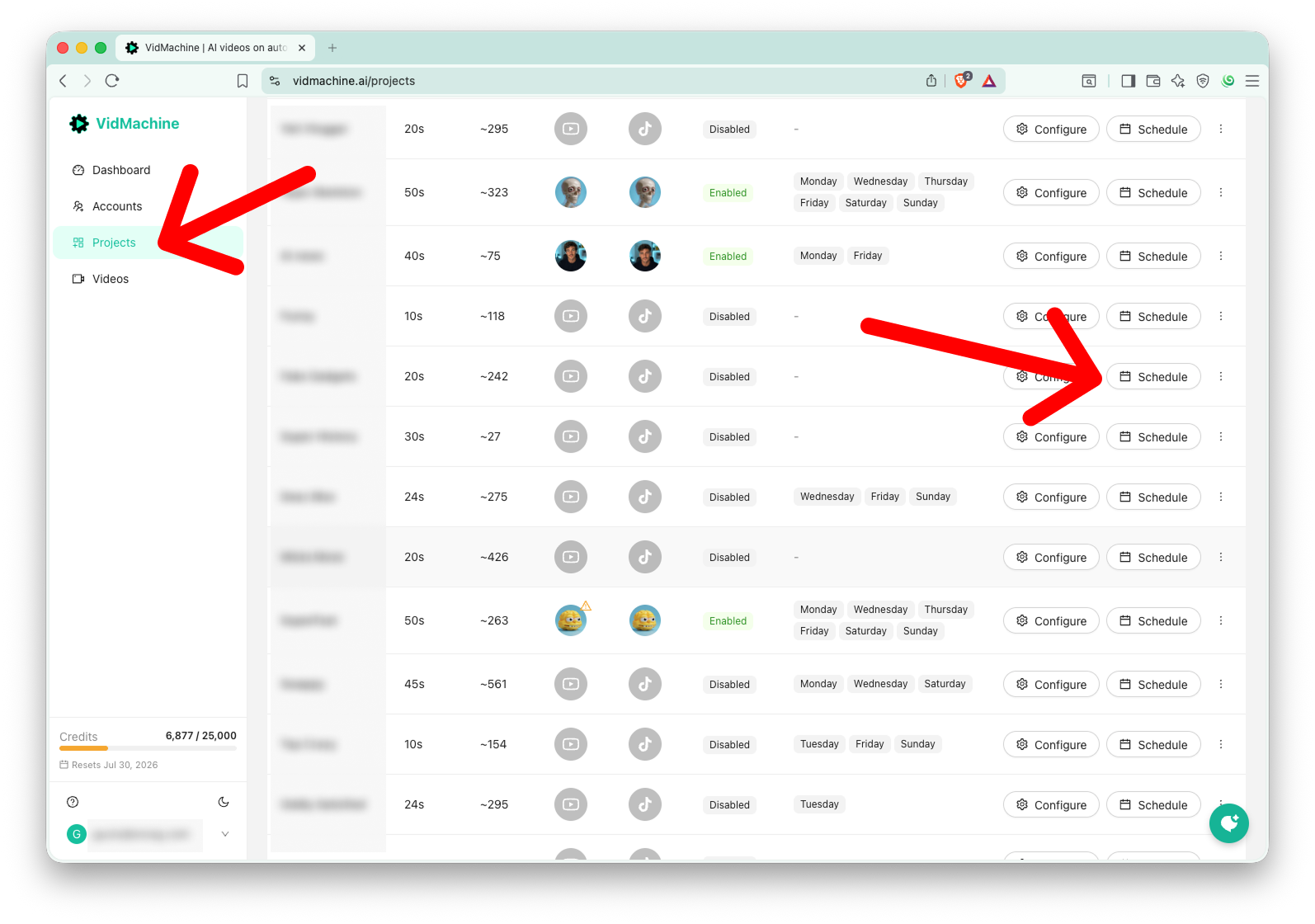
After saving the project, go to the project table and open Schedule settings (calendar/schedule icon) for that project to enable automation and set posting times.

Step 3: Set the schedule and assign accounts

In the Projects list, click the schedule (calendar) action for the project to open the Schedule Settings modal. Here you configure when and how often videos are auto-generated and posted.

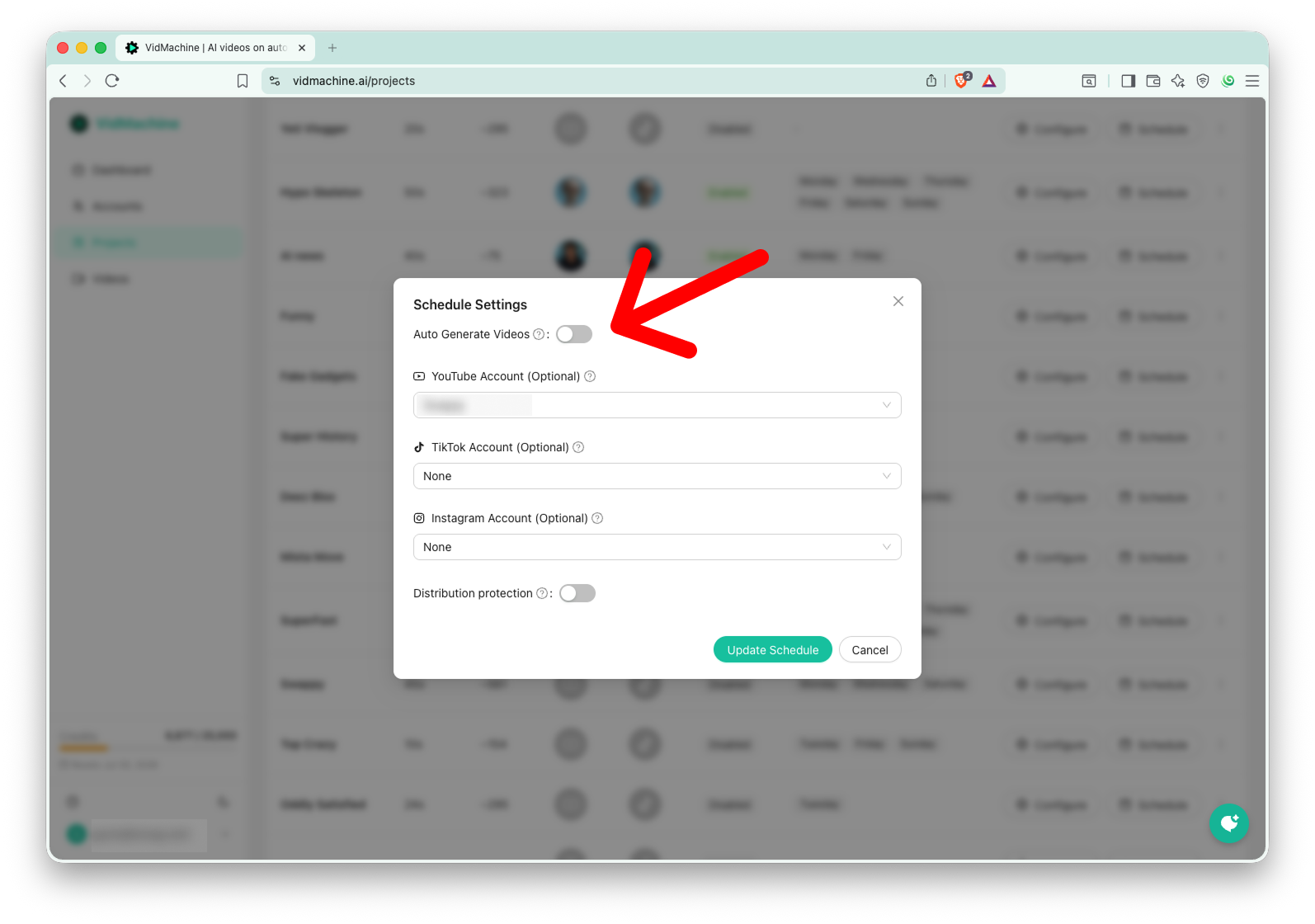
Auto Generate Videos

Turn this switch on to enable fully automatic video generation and posting for this project. When on, the system uses the schedule below to create ideas and videos in advance and publish them at the chosen times. When off, no automatic generation or posting occurs; you can still manually generate ideas and videos from the Videos page.

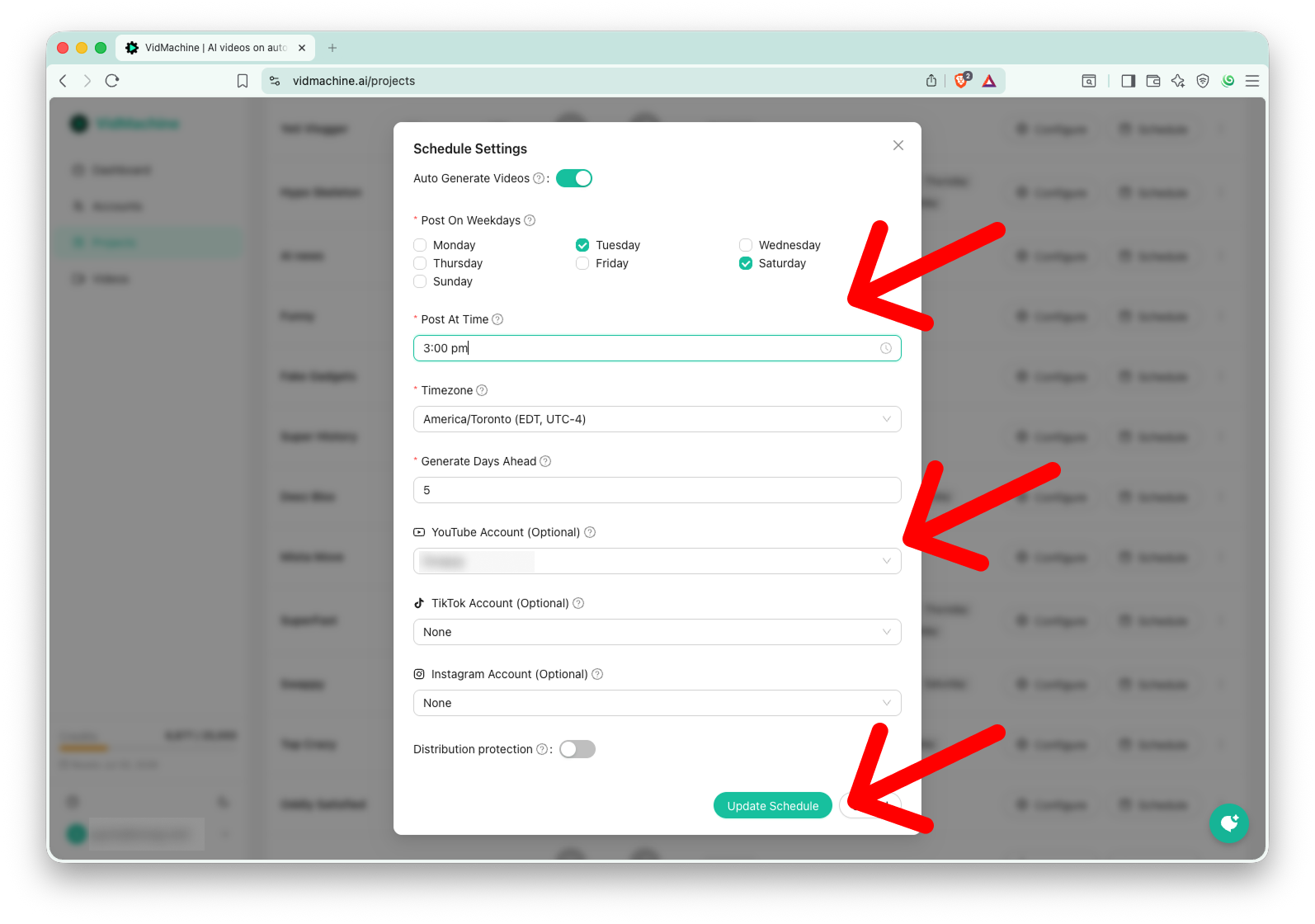
Post on weekdays

Select which days of the week to publish (e.g. Monday–Friday for a weekday-only content calendar, or add weekends for daily posting). The cron job that runs automatic video generation uses this list to decide which days need a video. Selecting multiple days means more videos per week; choose the frequency that matches your channel strategy and credit budget.

Post at time

Set the time of day (in 24-hour format) when each video should go live. This time is interpreted in the timezone you select next. For example, 14:00 in America/New_York means 2 PM Eastern. Consistency helps build an audience: many creators use the same time every day for Shorts and TikTok so subscribers know when to expect new content.

Timezone

Choose the IANA timezone (e.g. America/New_York, Europe/London) for the “Post at time” value. The dashboard can pre-fill your detected timezone. Using the correct timezone ensures videos publish when you expect in your (or your audience’s) local time, which is important for automatic posting across regions.

Generate days ahead

This number (1–30) is how many days before a scheduled post date VidMachine will generate the video. For example, if you post on Fridays at 6 PM and set generate days ahead to 5, the system generates that Friday’s video by the previous Sunday (or earlier). Giving enough lead time (e.g. 3–7 days) ensures videos are ready even if generation is slow or retries happen. Too low a value might leave no video ready on post day; too high uses more credits upfront and more queue depth.

YouTube account and TikTok account (optional)

If you have connected multiple YouTube or TikTok accounts, select which one to use for this project. The automatic posting job will publish to the selected YouTube channel and TikTok account when a video is ready and its post time has arrived. Leaving these unset means no automatic publishing to that platform for this project (videos still generate and can be manually published). Setting both allows true cross-posting: the same video goes to YouTube Shorts and TikTok on the same schedule.

How automatic generation and posting work

A scheduled job (cron) runs periodically. For each project with auto-generate enabled and valid schedule (weekdays, time, timezone, generate days ahead), it computes the next post dates in that timezone. For each date it ensures a video is generated far enough in advance (generate days ahead). When the post time arrives, another process publishes the video to the project’s linked YouTube and TikTok accounts. If generation or publishing fails repeatedly (e.g. three times in a row), auto-generate may be disabled for that project for safety; you can re-enable it after fixing issues (e.g. credits, account permissions).

Tips for reliable automatic video generation

Keep enough credits in your account so that idea generation, screenplay, video, and optional narrator and captions can complete. Use 2–3 image and video models in priority order to reduce failures. Set generate days ahead to at least 3–5 so that slow runs or retries don’t miss the post date. Use a clear, detailed project description so auto-generated ideas and screenplays stay on topic. If you run multiple projects, give each a distinct description and assign the correct YouTube and TikTok accounts so the right content goes to the right channel.

Related guides

Getting started covers sign-up and your first project. How to create videos walks through manual idea and video creation. Credits & billing explains what uses credits. For programmatic control, see the API reference (e.g. creating projects and enabling auto_generate via API).